“How can I throttle emails in Marketo?”, is a common question in the Marketo Community. And by throttle people mean the option to send one email over time in split batches to an audience that they don’t want to send an email to all at once. And that’s a reasonable thought, especially if that audience is of dubious quality or hasn’t been sent emails to in a longer time. Or it is simply too large (1 million+).
Anyway, Marketo can’t do it. There simply isn’t a function to throttle. But there are a couple of options by using “Random Sample”.
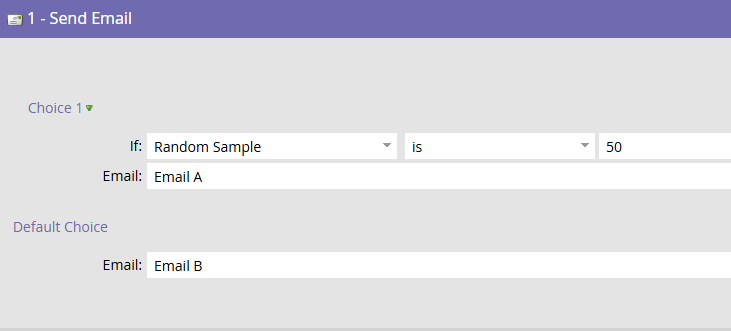
What’s Random Sample? It’s both a Smart List Filter and a Flow Step Choice that takes a percentage of the audience and execute its Flow Step against that group. Like this:

Here the Flow Step is “Send Email”, but it could be any other Flow Step as well. What this does is this: It takes the audience defined in the Smart List part of the Smart Campaign and sends Email A to 50% of that group and Email B to the next 50% of that group. You might as well use this next variation to achieve exactly the same outcome:
Alright, now what about this version?

This does not what you might think it does. This flow takes 50% of the audience and sends Email A. Then 100% of the audience wait 7 days. And Flow Step #3 sends Email A again to a new sample of 50% of that audience. And this new sample will have overlap with your first sample, it might even send the email to the same 50% again.
So make sure to use “Random Sample” only in one Flow Step to actually split an audience.
Now what does that mean for our idea of throttling? Well, there are a couple of options, but probably the best approach is using lists. It’s stable, and it allows for solid reporting. Here’s the idea spelled out:
Take your full audience in the Smart List section of your Smart Campaign:

Prepare as many lists as you would like this full audience to be split into. List A, List B, List C, List D e.g. if you want to split into four equal pieces. And then run this flow step:

Just test this, and you’ll see that these list will have somewhat equal membership. A list of 100 might not be split into exactly four lists of 25, but it’ll be close enough. (I might go off on a tangent here and talk about randomness, but actually I’m not qualified. Just trust me, that this procedure is random enough.)
Now to finally throttle-send this email, make a flow step like this:
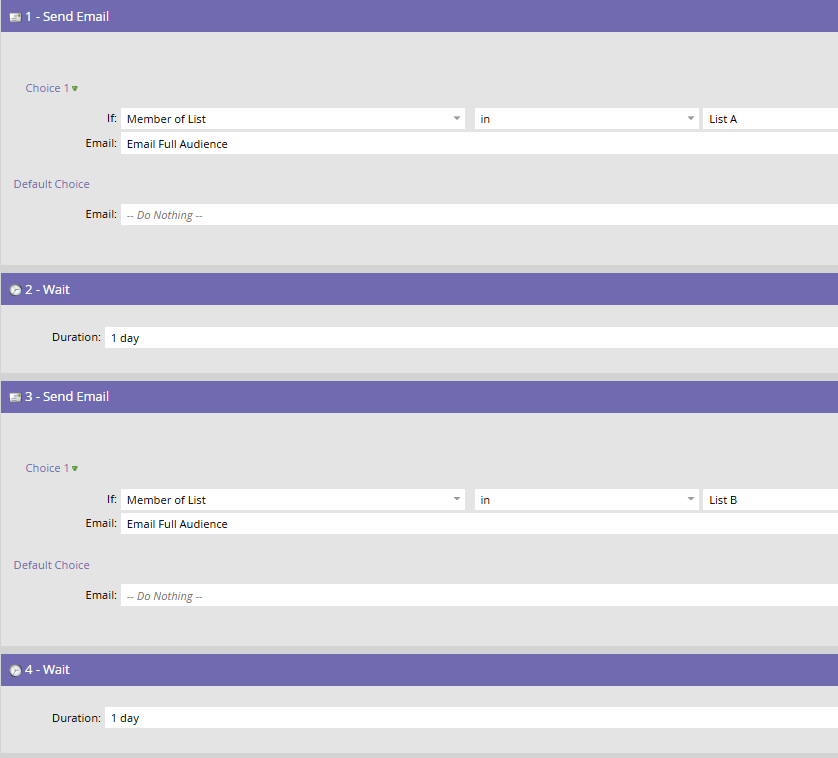
… and so on with Lists C and D. Of course you could also set up four batches with the respective List in the Smart List instead of in the Choice.
And by the way: Random Sample is also the go-to function if you want to do A/B testing outside of Email Programs. It’s pretty versatile, especially as Choice in the Flow Steps “Send Email”, “Add to List” or “Change Engagement Program Stream”. And if you can come up with a good use case for using Random Sample with “Delete Person”, tell me! 🙂